

If you’re struggling with Shopify image upload issues, the problem often boils down to file size, resolution, format, or metadata conflicts. Shopify has strict limits: images must be under 20 MB and 20 megapixels, and they must use supported formats like JPEG or PNG. Misnamed files or incompatible color profiles can also cause errors.
Here’s how to fix common issues:
- Resize and compress images: Use tools like TinyPNG or Squoosh to reduce file size without losing quality.
- Stick to supported formats: Convert files to JPEG or PNG if needed.
- Clean up filenames: Avoid spaces, symbols, or long, complex names.
- Check your theme or apps: Test uploads using Shopify’s default Dawn theme or disable conflicting apps.
- Clear your cache: Refresh your browser or clear cache to resolve upload glitches.
If these steps don’t work, advanced fixes like uploading images via URLs or checking your browser console for errors can help. By following these steps, you can resolve upload problems and keep your Shopify store running smoothly.
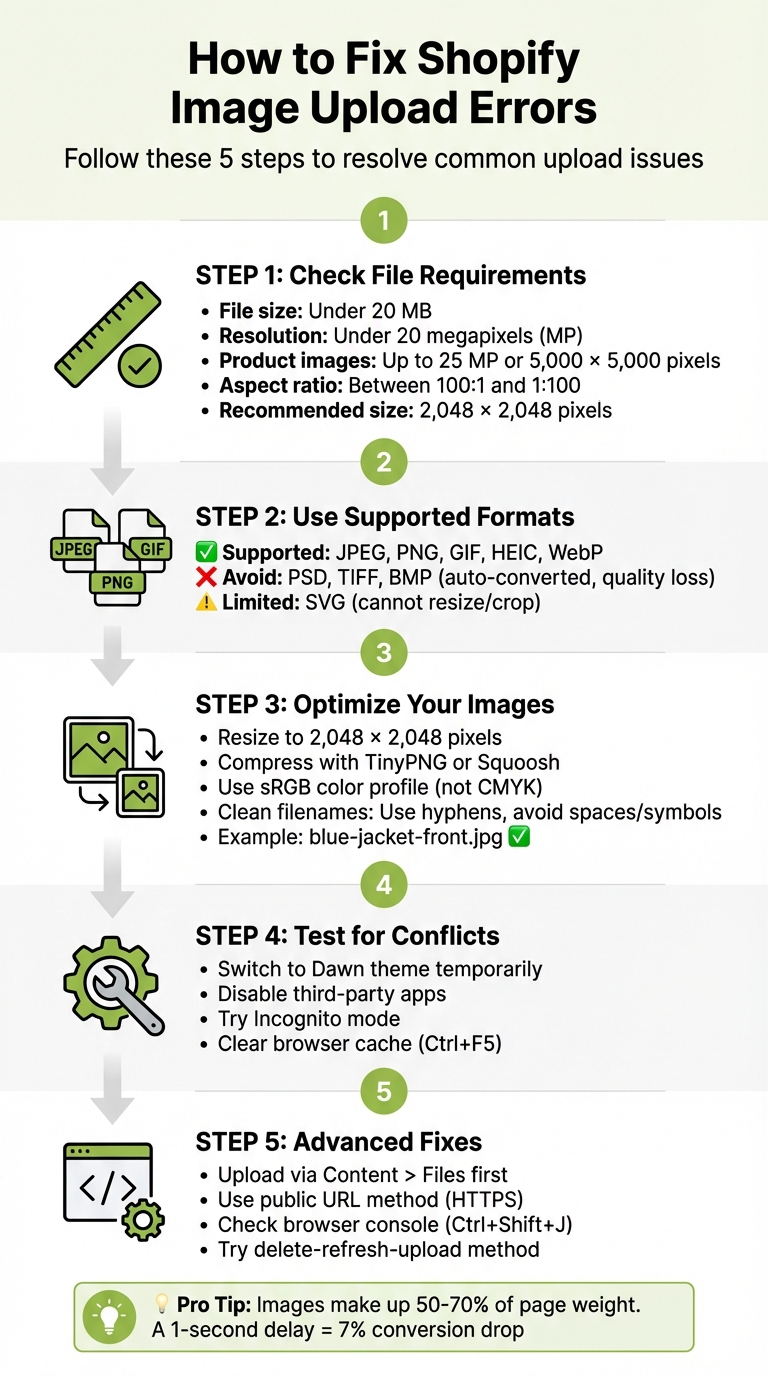
How to Fix Shopify Image Upload Errors: Step-by-Step Guide
Understanding & Solving Shopify's File Error "Exceeds maximum image resolution of 20 MP"
sbb-itb-81460ea
Why Shopify Image Uploads Fail
Image upload issues on Shopify often arise due to file size or resolution limits, unsupported formats, or metadata conflicts. Each of these problems triggers specific error messages, so understanding the cause can help you fix the issue quickly. Let’s break down the common culprits and how to address them.
File Size and Resolution Problems
Shopify enforces strict limits on image size and resolution. Files can't exceed 20 megabytes (MB) in size or 20 megapixels (MP) in resolution [1][2]. However, product and collection images have a slightly higher resolution cap of 25 MP or 5,000 x 5,000 pixels [6]. To check if your image meets these requirements, calculate megapixels by multiplying the width and height of the image, then dividing by 1,000,000. For example, a 4,900 x 6,930 image equals approximately 33.9 MP, which exceeds Shopify's limit and won't upload.
Images also need to adhere to an aspect ratio between 100:1 and 1:100 [2]. For optimal performance, aim for square images around 2,048 x 2,048 pixels, which strike a good balance between quality and loading speed [5][6]. If you want to enable the zoom feature for customers, ensure your images are at least 800 x 800 pixels [5].
Wrong File Formats
Shopify supports a variety of file formats, including JPEG, Progressive JPEG, PNG, GIF, HEIC, and WebP [1][2]. While PSD, TIFF, and BMP files are also accepted, Shopify automatically converts them to JPEG or PNG, which can result in a loss of quality [1]. SVG files are allowed but come with limitations - they cannot be resized or cropped unless converted to a raster format like JPEG or PNG [1].
Metadata and Color Profile Errors
Metadata embedded in image files can cause upload problems. Shopify removes embedded color profiles, such as .ICC or .ICM, to standardize display across devices using the sRGB color profile [1]. If your image was created with a CMYK color profile instead of RGB, you might experience color distortions after upload, or the file might fail to upload entirely.
Corrupted EXIF data or improperly named files can also lead to failures. As former Shopify Community Expert Marty_1 explained:
"This is generally an indication of poor file name management. Check the source file's name... look for things like: actual spaces in the file name, long, complicated names, names starting with symbols, like '!', or too many periods before the file type." [3]
Files that start with a period (.) or include underscores directly before dimensions (e.g., product_image_5x4.jpeg) can conflict with Shopify’s Content Delivery Network, resulting in upload rejections [2][3]. To avoid these issues, simplify file names to formats like image1.jpg [3]. Fixing these naming and metadata problems often resolves upload issues and streamlines further troubleshooting.
How to Fix File-Related Upload Errors
Once you’ve pinpointed why your image uploads are failing, fixing the issue often just requires a few simple adjustments to your files. Start by optimizing your images: resize them to 2,048 x 2,048 pixels, convert them to JPEG for photos or PNG for graphics, and ensure they’re using the sRGB color profile. Also, clean up filenames by replacing underscores with hyphens to avoid upload problems. After that, follow these steps to resize, convert, and compress your images effectively.
Resize and Convert Your Images
If you’re using Shopify Admin, go to Content > Files, pick an image, click Resize, adjust the width to 2,048 pixels (make sure to lock the aspect ratio), then click Done and Save. Alternatively, Shopify's free online Image Resizer is a handy tool - upload your image, select a preset size like "Compact" or "Large", and download the optimized version. Stick to a standard web resolution of 72 PPI for best results.
For image formats, use JPEG for detailed product photos to keep file sizes manageable, and PNG for graphics or logos that need a transparent background. If you’re dealing with TIFF or BMP files - which are often too bulky for online use - convert them to JPEG or PNG using tools like Squoosh.app before uploading. Always ensure your images use the sRGB color profile, as Shopify automatically removes non-sRGB profiles to ensure consistent display across all devices.
Image Compression Tools
Compression tools can drastically shrink file sizes without noticeably affecting quality. TinyPNG, for instance, uses smart lossy compression to reduce file sizes by up to 80%. It’s free for up to 20 images (each up to 5 MB), with paid plans for larger batches. For lossless compression - perfect for situations where preserving every pixel matters - ImageOptim is a free, open-source app for Mac users. Squoosh offers real-time control over the balance between quality and file size and supports modern formats like WebP and AVIF.
Here’s a quick comparison of some popular image compression tools:
| Tool | Type | Compression Type | Ease of Use | Best For |
|---|---|---|---|---|
| TinyPNG | Web-based | Smart Lossy | Very Easy (Drag & Drop) | Quick optimization for PNG and JPG |
| ImageOptim | Mac Desktop App | Lossless | Easy (Batch Processing) | Mac users needing precise compression |
| Shopify Media Editor | Built-in Admin | Standard | Integrated | Quick edits directly in Shopify Admin |
For example, a 5 MB image at 4,000 x 4,000 pixels, once resized and compressed, can shrink to just 180 KB - dramatically cutting down page weight. Considering that images often make up 50–70% of a Shopify store’s total page weight, this kind of optimization is crucial. Even a single second of delay in page load time can cost you a 7% drop in conversions [7].
Once your file-related issues are resolved, it’s a good idea to check for other potential conflicts, such as problems with your theme, apps, or cache settings.
Fixing Theme, App, and Cache Problems
Sometimes, even when your files meet all technical requirements, other factors like theme conflicts, third-party apps, or an outdated cache can throw a wrench in the upload process. These problems might make the upload button unresponsive or trigger vague server errors, even if the file itself is perfectly fine [8]. If issues persist after addressing file-related fixes, it’s time to dig into potential problems with your theme, apps, or browser cache.
Test and Fix Theme Conflicts
Custom themes can occasionally clash with Shopify’s image features. For instance, advanced options like focal points require Shopify’s Dawn theme version 7.0.0 or higher, Colorblock 3.0.0+, or Craft 5.0.0+. Some third-party themes may not support these features at all [1]. To rule out theme-related issues, try switching to Shopify’s default Dawn theme:
- Go to Online Store > Themes.
- Click Customize on the Dawn theme.
- Attempt to upload your image.
If the upload works, your original theme is likely the culprit. Check your theme developer’s documentation or reach out to them for help. If the issue persists even with the Dawn theme, it’s time to investigate third-party apps.
A quick heads-up: Shopify themes use lazy loading, which displays a low-resolution version of your image first to improve page speed. This might make images look blurry for a second or two, but it’s completely normal and not an upload error [1].
Find Apps Causing Upload Issues
Third-party apps or browser extensions, like ad blockers or pop-up blockers, can sometimes interfere with the upload process by flagging it as a security risk [9]. To test this, open an incognito or private browsing window (press Ctrl+Shift+N in Chrome) and try uploading your image. If the upload works in this mode, an app or extension is likely causing the problem.
Here’s how to narrow it down:
- Disable browser extensions one by one.
- Go to Settings > Apps and sales channels in Shopify and temporarily disable any apps interacting with images.
Once you’ve identified the app or extension causing the issue, contact its developer for support. If the problem isn’t resolved, it’s time to clear your browser cache.
Clear Cache and Browser Data
An outdated or corrupted browser cache can sometimes block uploads. A hard refresh is a quick way to load the latest files from Shopify’s servers [10]. Use Ctrl+F5 on Windows or Cmd+Shift+R on a Mac to perform a hard refresh. If the problem continues, manually clear your browser’s cache:
- In Chrome, navigate to Settings > Privacy and Security > Clear browsing data.
- Select Cached images and files and clear them [10].
"Cached files can break layouts, display outdated scripts, and block new features. A cache reset often solves these issues instantly."
– Ankur Shah, Shopify Expert [10]
If clearing the cache doesn’t work, you can force a theme cache reset by making a small edit to your theme.liquid file and saving it [10].
For particularly stubborn collection image errors, try the delete-refresh-upload method: delete the problematic image, save the changes, refresh the page, and then upload the new image. This approach has resolved persistent server errors for many Shopify users [3][4].
Advanced Fixes for Stubborn Upload Errors
When standard file tweaks and theme adjustments don’t solve the problem, it’s time to dig deeper. These advanced techniques can help, especially in cases of silent failures - those frustrating moments when you hit "upload", and nothing happens, with no error messages to guide you.
Upload Images to Product Variants
If you're stuck with upload issues on product pages, there’s a workaround. Shopify only allows one image per product variant by default [11][12]. Instead of uploading directly on the product page, try this: go to Content > Files and upload your image there. Then, return to the variant, click the image icon, and use the "Select existing" option to pick your file from the media library [11][2].
Handling multiple variants? Save time with bulk editing. Select the variants you want, click the ... button, and choose Add images. This approach can bypass glitches that sometimes occur when editing variants one by one [11].
Upload Images Using URLs
When local uploads just won’t work, switch to uploading via a public URL. This can be done using a CSV import or through the GraphQL Admin API [13][14]. To make this work, your images must be hosted on a publicly accessible URL (using HTTPS) without any password protection. You can test this by pasting the URL into an incognito browser window to confirm it’s accessible [13].
"Use fileCreate when your files are already accessible at a public URL. This is the simplest approach: you provide a URL and Shopify handles downloading, processing, and storing the file."
– Shopify Dev Documentation [14]
For CSV uploads, each image needs its own row. Duplicate the product handle for each additional image and paste the corresponding URL into the "Image Src" column [13]. Shopify suggests using Google Sheets to edit CSV files, as it helps maintain proper formatting [13]. If you still encounter issues, use your browser’s console to troubleshoot further.
Check Browser Console for Errors
When uploads fail without clear feedback, the browser console can reveal what’s going wrong. Open the JavaScript Console with Ctrl+Shift+J on Windows or Cmd+Option+J on Mac [15]. Look for red text showing critical JavaScript errors or failed network requests. Then, switch to the Network tab and attempt the upload again. Errors in the 400 range often point to permission or firewall issues (e.g., a 403 error), while 500-series errors suggest server-side problems on Shopify's end [15].
If you spot a JavaScript error tied to a specific app in the file path, it could mean that app is interfering with Shopify’s upload process [15]. Try disabling the app temporarily to see if it resolves the issue.
Summary
This section outlines common causes and solutions for Shopify image upload errors.
Most Shopify image upload errors stem from file size or dimension limits. Images must be under 20 MB and 20 megapixels; exceeding these thresholds results in silent upload failures. Issues can also arise from unsupported file formats or overly complex filenames.
To prepare your files correctly:
- Calculate megapixels by dividing the product of width and height by 1,000,000 to ensure the image stays under 20 MP.
- Compress images using tools like TinyPNG or Squoosh.
- Convert files to supported formats like JPEG or PNG.
- Rename files with simple, clear names (e.g., blue-jacket-front.jpg).
If problems persist, try refreshing your browser or testing in Incognito mode to bypass cache or extension-related issues. For collection-specific errors (e.g., {:src=> "Error updating collection with this image"}), delete the problematic image, save your changes, refresh the page, and reupload the image.
For more stubborn issues, check the browser console for JavaScript errors. A 403 error may point to firewall blocks, while 500-series errors often indicate server-side problems.
To prevent recurring issues, maintain good file practices. Keep image dimensions within 2,048 × 2,048 pixels and use the sRGB color profile for the best display quality. By following these steps, you can ensure your Shopify store runs smoothly and your product images look their best.
FAQs
Why am I getting errors when uploading images to Shopify?
Image upload issues on Shopify usually stem from a few key factors. These include file size or resolution exceeding Shopify's limits, unsupported file formats, or temporary server hiccups. For instance, Shopify enforces a maximum resolution of 20 megapixels - images larger than this won't upload. Resizing your images to fit within these limits often solves the problem.
Other potential culprits include incompatible color profiles, unstable internet connections, or temporary glitches within the platform. To address these issues, make sure your images are in supported formats like JPEG or PNG, confirm their file size is within acceptable limits, and attempt the upload again. If the problem continues, double-check your internet connection or wait to see if Shopify resolves any server-related issues on their end.
What are Shopify's image size and format requirements, and how can I ensure my uploads meet them?
To make sure your images align with Shopify's size and format guidelines, here’s what you need to know:
- Image Dimensions: Use images that are at least 1024 x 1024 pixels. For sharper visuals, aim for 2048 x 2048 pixels with a square (1:1) aspect ratio.
- File Formats: Shopify supports JPG, PNG, WebP, and GIF formats. For better performance and faster loading, stick to JPG or WebP.
- File Size: While Shopify allows uploads up to 20 MB, aim to keep file sizes under 500 KB to ensure quicker load times.
- Color and Background: Use the sRGB color space and choose white or transparent backgrounds for a polished, professional appearance.
By prepping your images with these specs in mind, you’ll avoid upload issues and ensure they look great across all devices while meeting Shopify’s requirements.
What should I do if clearing the cache and adjusting file settings don’t fix my Shopify image upload issues?
If clearing your cache and tweaking file settings hasn’t fixed your Shopify image upload problems, consider resizing the image or converting it to a different format. Shopify has specific requirements for image dimensions, file size, and supported formats, so double-check that your file aligns with these guidelines.
Another possible issue could be your internet connection. Slow or unstable connectivity can sometimes interrupt uploads. If that’s not the problem, try switching to a different browser or device - compatibility issues can occasionally cause errors. And sometimes, the issue isn’t on your end at all. Temporary server hiccups on Shopify’s side might be the reason, so giving it a bit of time could resolve the problem.
