

[Payment delays on Shopify](https://e-comfaqs.com/blogs/sellsmarter/shopify) can disrupt your cash flow and create operational challenges. This guide breaks down 7 steps to resolve these issues quickly:
- Check Payment Gateway Settings: Ensure your gateway is active, credentials are correct, and bank details match.
- Verify Bank Account Information: Double-check account and routing numbers; use a checking account that accepts ACH transfers.
- Review Payout Schedule: Understand your pay period and adjust payout frequency if needed.
- Check Order Payment Status: Identify pending or failed payments and address customer issues.
- Address Fraud or Verification Alerts: Resolve holds by submitting required documents and enabling security features.
- Contact Your Payment Provider: Reach out if payouts are delayed after being marked "sent."
- Contact Shopify Support: As a final step, request assistance if delays persist.
Act promptly by reviewing alerts in your Shopify admin and keeping compliance documents ready. For faster payouts, consider Shopify Balance. Follow these steps to resolve delays and maintain smooth payment processing.
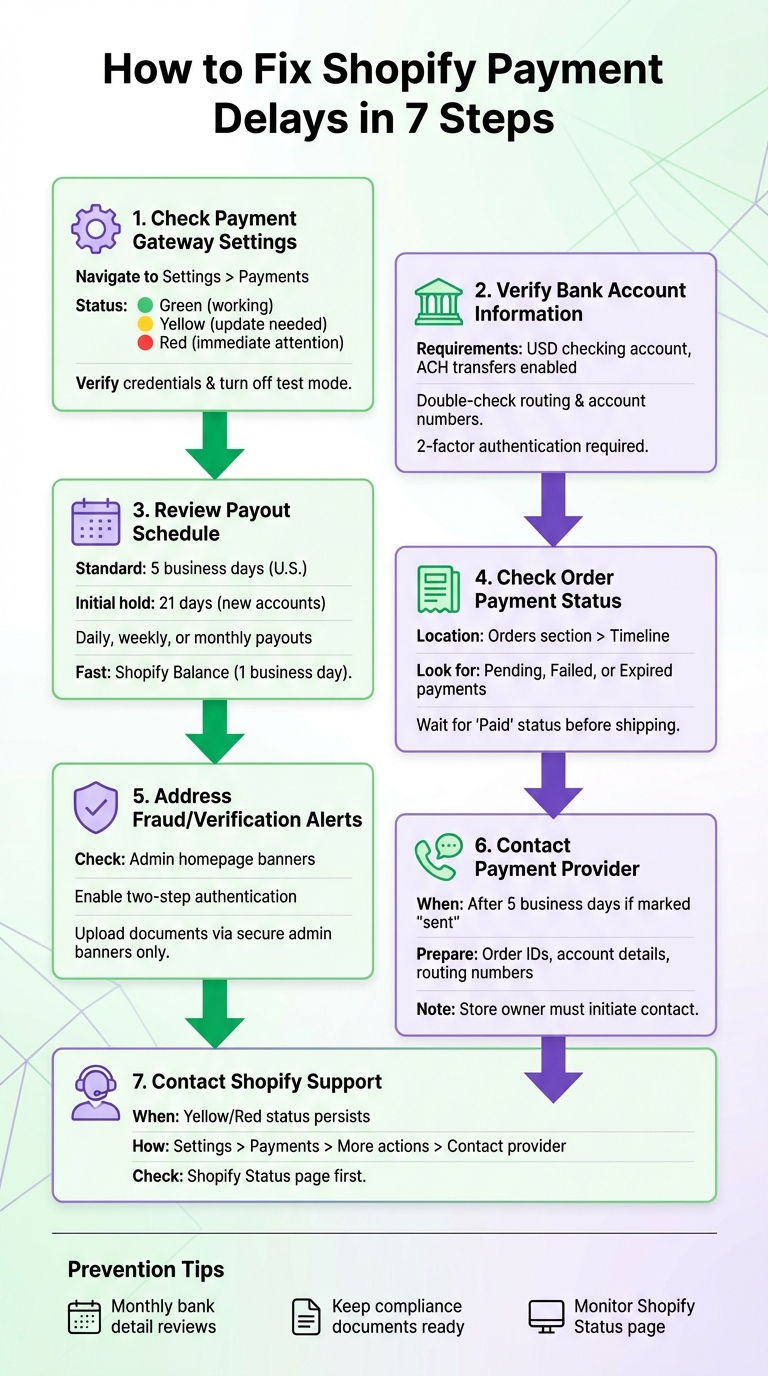
7 Steps to Fix Shopify Payment Delays Flowchart
How To Fix Shopify Payout Doesn't Work (SIMPLE & Easy Guide!)
Step 1: Check Your Payment Gateway Settings
Your payment gateway is the crucial link between your customers’ purchases and your bank account. To make sure everything is set up correctly, go to your Shopify admin, then navigate to Settings > Payments to review your payment setup [2][6].
Confirm Your Payment Gateway Is Active
In the Payments section, look for color-coded indicators to check the status of your gateway. A green indicator means everything is working, yellow suggests you need to update your business information, and red signals an issue that needs immediate attention [6].
For Shopify Payments, click Manage to review your settings. If you’re using a third-party provider like PayPal or Stripe, click Manage or select the provider’s name [6]. Also, make sure test mode is turned off in your provider’s dashboard so real transactions can be processed [2].
Double-Check Your Gateway Account Information
Incorrect business details - like an inaccurate tax ID (such as an SSN) - can lead to payout issues [6]. Take a moment to verify the details in the "Business information" and "Tax details" sections. If you’re using a third-party gateway, ensure that your account credentials (IDs, passwords, and security keys) match exactly what the provider gave you. Credential mismatches are a common cause of connection errors [2].
Be sure to check your Shopify admin homepage for any banner messages or alerts. These will guide you if something specific requires your attention [2][6]. Remember, only the store owner can edit banking information for Shopify Payments. Additionally, two-step authentication must be enabled to make these updates [6]. If you need to change your business type or tax ID, you may need to contact Shopify Support, as some details can’t be updated manually [6].
Finally, confirm your bank account details to ensure your payouts are deposited without any hiccups.
Step 2: Verify Your Bank Account Information
After setting up your payment gateway, double-check that your bank account details are accurate. Even a small typo in your bank or routing number can halt payouts. To review your banking information, head to Settings > Payments in your Shopify admin. Under the Shopify Payments section, click Manage and scroll to the Payout details section.
Double-Check Your Account Details
Your bank account must meet certain U.S. requirements for payouts. Shopify only supports checking or current accounts - savings accounts, flex-currency accounts, or accounts limited to wire transfers are not eligible [8]. The account must also be a USD account based in the United States and able to accept ACH transfers [8].
Make sure the account and routing numbers match your bank statements exactly. If you entered your details manually, you can switch to Plaid for easier verification by selecting Change bank account and following the steps to connect via your online banking credentials [7].
It's a good idea to confirm with your bank that your account can receive ACH transfers, as some business accounts may have restrictions you might not be aware of [8]. Once Shopify sends a payout, your bank may take up to 5 business days to process and deposit the funds into your account [3].
Update and Save Your Information
If your bank details need updating, click Change bank account in the Payout details section. You'll need to complete two-factor authentication and provide your new routing and account numbers or use Plaid for instant updates [4][7].
Keep in mind, updating your bank account may temporarily delay payouts while the new information is verified [3][4]. After saving your changes, check your Shopify admin homepage for any banner notifications that might require additional steps.
Once your bank details are updated, you're ready to move on and review your payout schedule in the next step.
Step 3: Review Your Payout Schedule
Your payout schedule determines when and how funds are transferred to your bank. Knowing how this process works can help you identify potential delays. The timing largely depends on your pay period - the interval between when a customer's payment is processed and when those funds are deposited into your account [9]. If payments seem delayed, your current schedule or account status could be the reason.
How Payout Timing Works
For merchants in the U.S., payouts usually take 5 business days from the time a customer completes their purchase [10]. For instance, if a sale happens on a Monday, the payout typically arrives by the following Monday, excluding weekends and holidays. Sales made on Friday, Saturday, and Sunday are grouped together and processed as a single payout [10].
When you first set up your account, there’s an initial 21-day hold on funds as a security measure [10]. After this hold, payouts follow the standard 5-business-day schedule. However, bank processing can add an extra 1–3 days [10], meaning it could take up to 8 business days or more for funds to become available.
If your account is flagged as higher risk, payout delays can extend to 5 to 20 business days [10]. Additionally, if you’ve recently updated your bank account details, expect a 4-calendar-day security pause on payouts while Shopify verifies the new information [10].
Adjusting Your Payout Frequency
To change how often you receive payouts, go to Settings > Payments in your Shopify admin, then click Manage under the Shopify Payments section [9][10]. You’ll have the option to select daily, weekly, or monthly payouts. Keep in mind that adjusting your payout frequency might delay any pending payments until the new schedule takes effect.
If faster access to funds is a priority, consider opening a Shopify Balance account. With this option, you can receive payouts in as little as 1 business day, which is up to 7 days faster than traditional banks [4][10]. While this speeds up access to your earnings, remember that all payout schedules are based on business days, and changes won’t bypass holds related to compliance reviews or missing documentation [10].
Now, move on to Step 4 to review order payment statuses.
Step 4: Check Order Payment Status
Sometimes, payments for individual orders might get delayed. To check the payment status of a specific order, go to the Orders section in your Shopify admin and select the order you want to review [12]. This opens the order details page, where the Timeline section logs every payment-related event for that transaction [12]. Look here to identify any pending payments.
Find Pending Payments
The Timeline provides a detailed breakdown of what occurred during each payment attempt. For more technical insights, click on any payment event and select Information from the gateway to view error codes or messages [12]. These details can help you pinpoint and address issues with failed payments.
Orders with pending payments come with restrictions - you won’t be able to edit, restock, or cancel them until the payment clears [5]. To protect your business, wait for the order status to display Paid before shipping any items [5]. Keep in mind that pending payments usually expire after one week [5]. If the status changes to Expired, reach out to your payment provider to check if the funds can still be captured before canceling the order [5][11].
Handle Customer Payment Problems
Sometimes, payments fail entirely due to customer-related issues. When this happens, Shopify automatically sends a Pay now email to the customer, encouraging them to retry the payment [5]. Common reasons for failed payments include insufficient funds or declined cards. You can find specific error messages in the Order Timeline, which often explain the issue [2].
If the order was never completed, check the Abandoned checkout timeline for payment events to understand why the customer didn’t finish the transaction [12][2]. For manual capture orders, look for an Authorized status along with an Expiring badge, which appears two days before the payment capture deadline [11]. Missing this deadline means the funds will be forfeited, requiring the customer to make a new payment.
sbb-itb-81460ea
Step 5: Look for Fraud or Verification Alerts
Shopify Payments accounts often undergo routine reviews to ensure compliance with banking regulations. These reviews can sometimes result in payout holds until specific information is provided [1][14]. Common reasons for these holds include identity verification (KYC) requests, business eligibility checks, incorrect banking details, or missing security features like two-step authentication [1][13][14].
Check Your Shopify Admin for Alerts
The easiest way to spot a verification request is by checking your Shopify admin homepage. Look for a prominent banner or message prompt explaining what’s needed to resolve the hold [1][2]. If you don’t see a banner, check the store owner’s email inbox - don’t forget to look in the spam folder - for detailed notifications about the hold.
To verify the store owner’s email address, go to Settings > Users and permissions and review the "Store owner" profile [1]. Keep in mind that only the store owner has access to Shopify Payments account details and can resolve payout holds. Staff members cannot handle these requests [1].
"Shopify Payments payouts might be placed on hold until two-step authentication is activated on your store."
- Shopify Help Center [13]
If the hold is due to missing two-step authentication, activate this security feature right away [13]. Customers can usually still complete their purchases while payouts are on hold, but funds won’t be released until the issue is resolved [1].
After reviewing alerts and enabling any necessary security features, proceed to upload the required documents.
Upload Required Documents
When Shopify requests verification documents, always submit them through the secure banners in your Shopify admin.
"Shopify can only accept documents that are uploaded through the secure banners in your Shopify admin. Documents sent through email or support chat are redacted and rendered unusable."
- Shopify Help Center [13]
Ensure your documents meet quality standards. For photo IDs, upload color PNG or JPEG files with all borders clearly visible. Proof of address or business documents should be submitted as PDFs [13][14]. Proof of address must be dated within the last three months and match the representative’s personal home address - not a business address, PO Box, private mailbox, or virtual/forwarding address [13][14].
Make sure the details on the uploaded documents exactly match the information in your Shopify Payments settings [15]. If you’ve reached the limit for upload attempts, contact Shopify Support to have the process reset [15].
Step 6: Contact Your Payment Provider
If your payout hasn't arrived despite following the previous steps, it's time to reach out to your payment provider. This becomes especially urgent if you see a hold banner on your Shopify admin homepage [1] or if a payout shows as "sent" but hasn't hit your bank account after 5 business days [3]. Once Shopify sends the funds, processing times depend on your financial institution, which could explain the delay.
For those using third-party gateways such as PayPal or Amazon Pay, you'll need to contact those providers directly. Shopify doesn't have access to payout information for external systems [3].
Prepare Your Information Before Reaching Out
Before contacting support, gather all the necessary details. For Shopify Payments, have order IDs and transaction details from your Shopify admin ready [2]. If you're using a third-party gateway, make sure you have your account ID, security keys, and passwords, as most settings are managed through the provider's platform [2].
Additionally, you'll need your banking details, including routing and account numbers, along with the payout statement name that appears on your bank records (e.g., "Shopify", "Earthport PLC Shopify", "PayPal", or "Stripe") [6]. If you've recently updated your bank account information, keep the old details handy for verification [6]. It's also essential that the store owner initiates contact, as staff members can't access Shopify Payments account details or resolve payout holds [1].
Once you've organized all this information, contact your provider right away.
How to Contact Your Payment Provider
To get in touch, navigate to Settings > Payments in your Shopify admin, select your provider, click More actions, and choose Contact provider [2]. If you're using Shopify Payments and have received an email about an account hold, the quickest way to resolve the issue is by replying directly to that email or following the prompts in the admin banner [1].
If your payout is marked as "sent", wait 5 business days before contacting your bank [3]. Transfers to traditional bank accounts usually take 3 to 7 days, depending on regional processing times [4]. If you suspect the delay is due to incorrect account details or "test mode" settings being active, be sure to mention this when speaking with support [2].
Step 7: Contact Shopify Support
If you've followed all the previous steps and your Settings > Payments section still shows a Yellow or Red status [6], it's time to reach out to Shopify Support. Keep in mind, only store owners can initiate this process [1]. This step builds on the troubleshooting you've already done and serves as your final option for resolving payment issues.
Submit a Support Request
Before opening a support ticket, check your Shopify admin homepage for banner messages. These often include specific instructions or requests from Shopify [1]. If you've received an email about a payment delay, reply to it directly to speed up the process [1].
To submit a new support request, follow these steps:
- Go to Settings > Payments.
- Select your payment provider.
- Click More actions and choose Contact provider [2].
Make sure you're logged in as the store owner before submitting your request.
Monitor the Shopify Status Page
Before contacting support, check the Shopify status page to see if there are any platform-wide outages or issues affecting payouts [2]. If a larger issue is at play, Shopify will post updates there. This could save you time and help you avoid unnecessary communication with the support team.
Provide Detailed Account History
When reaching out to Shopify Support, include all relevant details and steps you've already taken. This helps their team resolve the issue faster. Be sure to mention:
- Verification of bank details and fraud alerts
- Confirmation of your payout schedule
- Previous communication with your payment provider
- Any previously used bank information (if applicable) [6]
- Current tax details like SSN, VAT ID, or GSTIN [6]
- Changes in business ownership or name [6]
The more context you provide, the quicker Shopify Support can assist you.
How to Prevent Future Payment Delays
Once you've addressed any immediate payout issues, it's a good idea to take steps that help ensure smooth payment processing moving forward. Shopify Payments accounts undergo routine reviews throughout their lifecycle, not just during the initial setup phase [1][16]. Here are some practical tips to help avoid future delays.
Double-Check Your Bank Details Regularly
Keeping your bank information up-to-date in Shopify is critical. Make sure you're using a valid checking or current account to prevent payout rejections [8]. A simple way to stay on top of this is to set a monthly reminder to review your bank details in Shopify Payments. If your banking information changes, update it immediately [7][3].
| Region | Required Transfer Type | Account Currency |
|---|---|---|
| United States | ACH | USD |
| Canada | ACH | CAD or USD |
| United Kingdom | FPS | GBP |
| Eurozone | SEPA | EUR |
| Australia/New Zealand | BECS | AUD or NZD |
Accurate bank details help keep your payouts running smoothly. Additionally, ensure your compliance documents are current to avoid interruptions.
Keep Compliance Documents Accessible
Sometimes, Shopify's banking partners may pause payouts to request additional verification [1]. During these holds, you can still process orders, but funds won't transfer until you provide the necessary documentation. To avoid delays, have digital copies of essential documents - such as your business license, tax ID (e.g., SSN, VAT ID, or GSTIN), and identity verification - stored in a secure but easily accessible location. Combining this with regular bank detail reviews creates a solid plan to minimize payment disruptions.
Monitor the Shopify Status Page
Another helpful habit is bookmarking the Shopify Status page. Check this page if you notice payment delays, as platform-wide outages or issues are often reported there [2]. Staying informed can save time and reduce unnecessary troubleshooting.
Conclusion
Payment delays can throw a wrench in your cash flow. To tackle them effectively, follow these steps: double-check your payment gateway and bank details, review your payout schedule and order statuses, stay alert for fraud warnings, reach out to your payment provider, and, if needed, contact Shopify Support. Keep in mind that only the store owner has the authority to modify Shopify Payments settings [1].
Quick action is key. Respond promptly to any prompts in your admin dashboard or emails from Shopify [1]. If a payout fails, Shopify will automatically retry the transfer within 72 hours [6]. Having your compliance documents ready for routine reviews can also save time and prevent future delays [1].
To keep things running smoothly, make it a habit to verify your bank details regularly, keep compliance documents easily accessible, and check the Shopify Status page for updates. For third-party payment providers, expect payouts to typically arrive within 3 to 7 days [4].
FAQs
What should I do if my Shopify payment gateway shows an error?
If your Shopify payment gateway shows an error or a red status, the first step is to review your admin dashboard for any alerts or notifications. These messages often outline the issue, whether it’s account holds or payout problems, and provide steps to address it.
Double-check that your account details are current, including bank information and tax records. Missing or inaccurate information can lead to delays. If you’re still facing issues, contact Shopify Support. They can help pinpoint the problem and guide you through the solution efficiently.
What can I do to resolve delays with my Shopify payouts?
To address Shopify payout delays, begin by verifying that your bank account information is correct. This includes ensuring that the routing and account numbers are entered accurately. Also, confirm that the currency set in your Shopify account aligns with the currency used by your bank, as mismatches can lead to processing problems.
Next, review your account for any holds or restrictions that might be delaying payouts. These could stem from pending verification requests or unresolved issues flagged by Shopify. Resolving these matters quickly can help restore the payment process.
By following these steps, you can reduce disruptions and keep your payouts running smoothly.
What documents do I need to resolve Shopify payment holds?
To address Shopify payment holds, you’ll usually need to submit valid identification and business verification documents. These might include a government-issued ID (like a driver’s license or passport), proof of your current address (such as a utility bill or bank statement), and bank account details that match the information in your Shopify Payments account.
Ensure all documents are current, easy to read, and align with the details you’ve already provided. Submitting accurate and complete information can help streamline the review process and get your payments back on track faster.
